- Subsurface Scattering>
- Simulating Absorption Using Depth Maps
Simulating Absorption Using Depth Maps
My next step was to look at other techniques, and I came across a method of approximating density using a custom depth texture.
The previous technique fakes translucency with a precomputed texture. This one measures the thickness at runtime.
We render the object from the light’s point of view and store each surface’s distance from the light.
When rendering the object itself, we compare the pixel’s distance from the light with the stored distance.
This gives a rough estimate of how far the light traveled through the object.
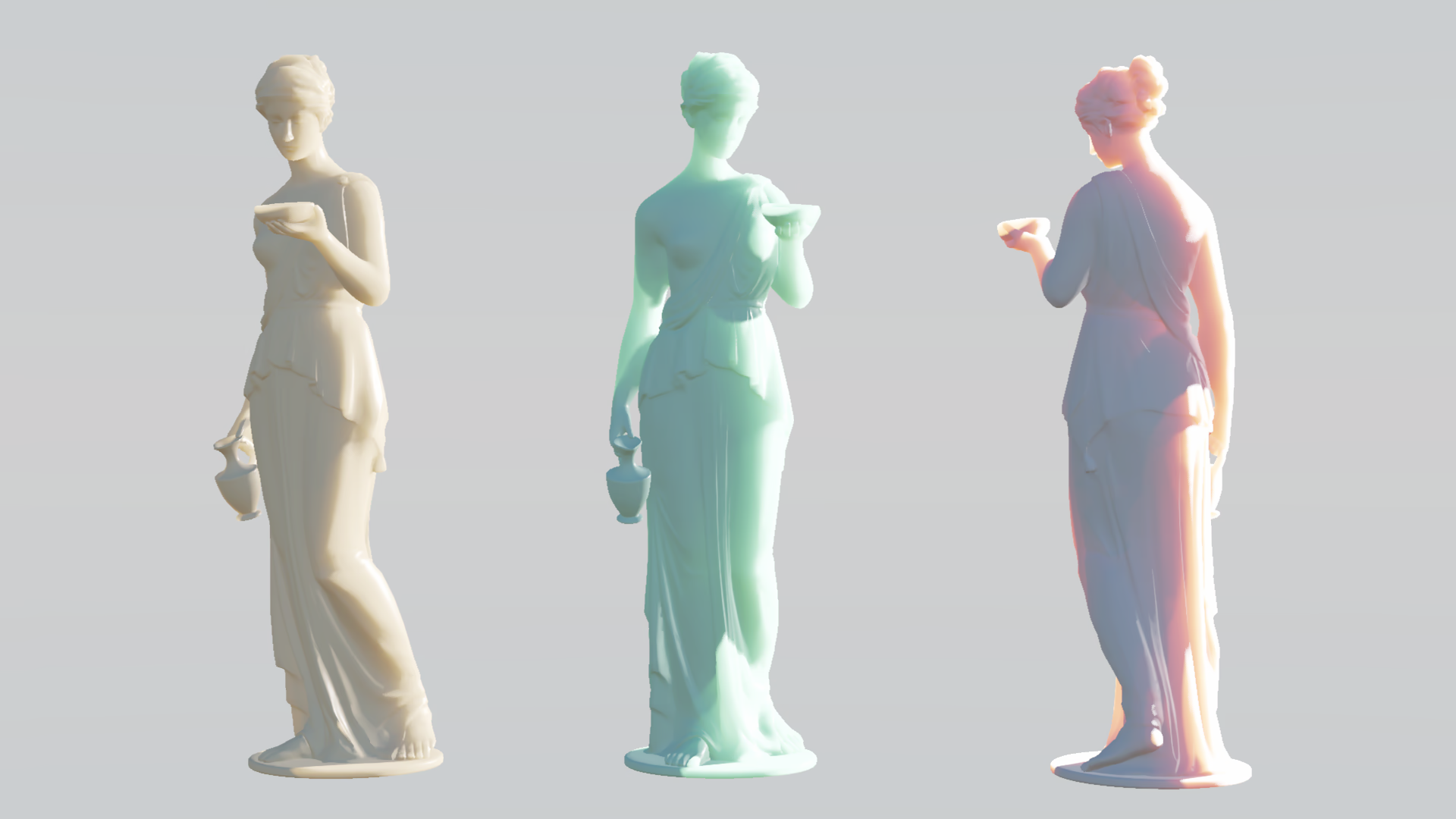
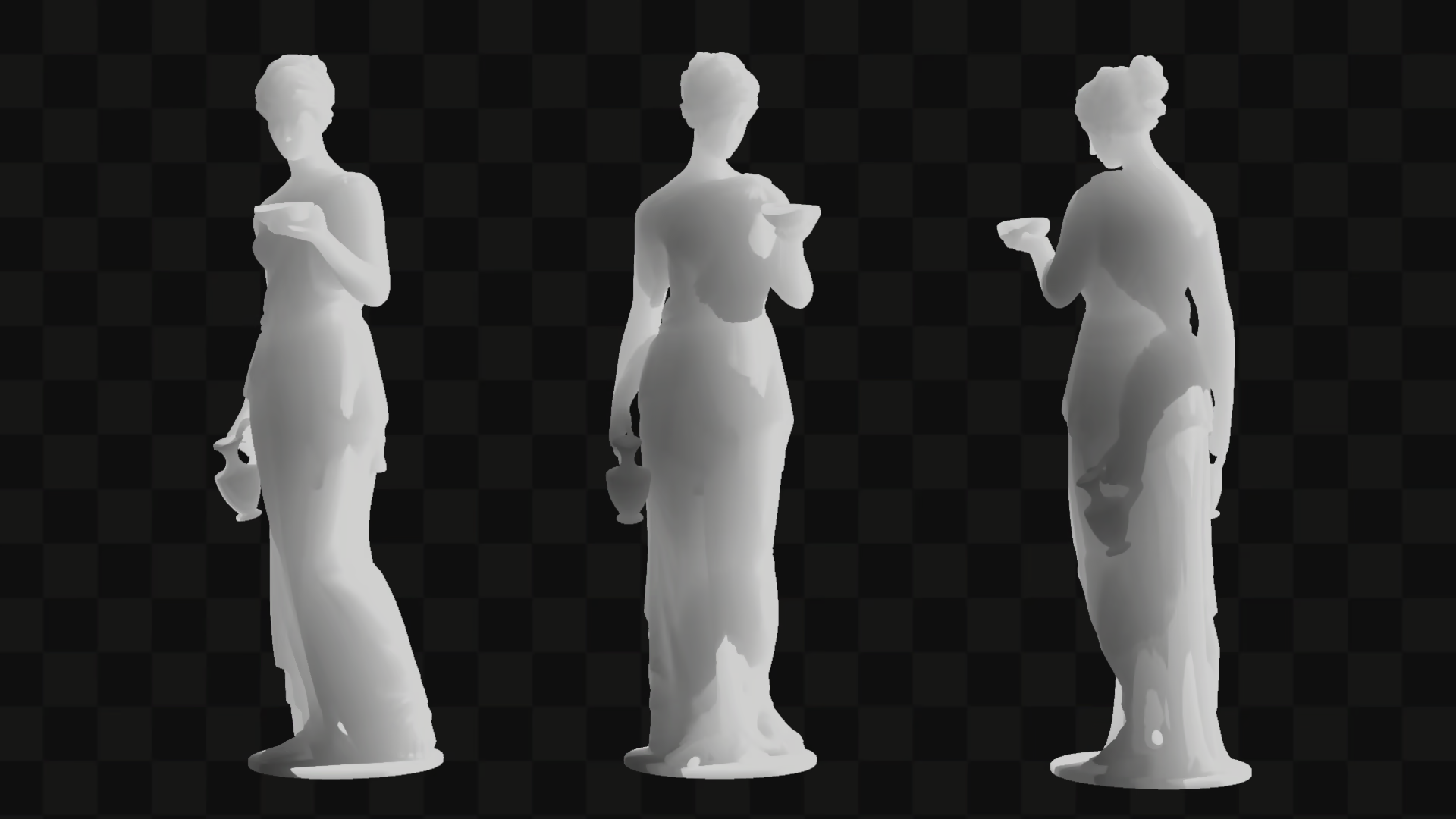
Rendering the light texture#
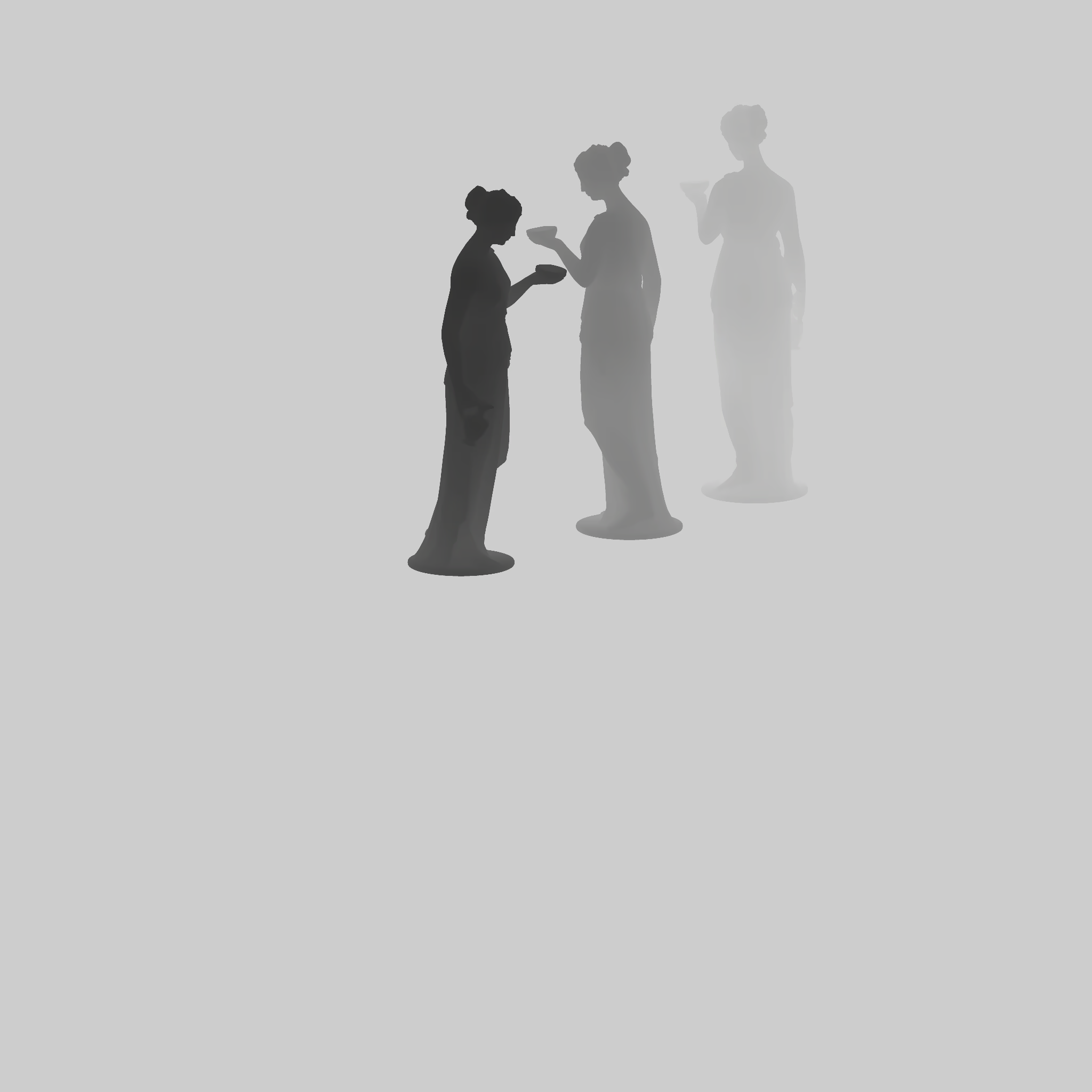
R32_SFloat texture, so no precision is lost.The material: from depth to color#
To shade a pixel, we first calculate how much material the light passed through (the thickness).
- Transform the
world positioninto thelight's UV spaceand sample the light distance texture. This is the distance at which the lightenteredthe object. - Transform the same
world positionwith thelight's view matrix. Thezcomponent is the distance at which the lightreachesthis pixel. - Subtract the two to get the thickness.
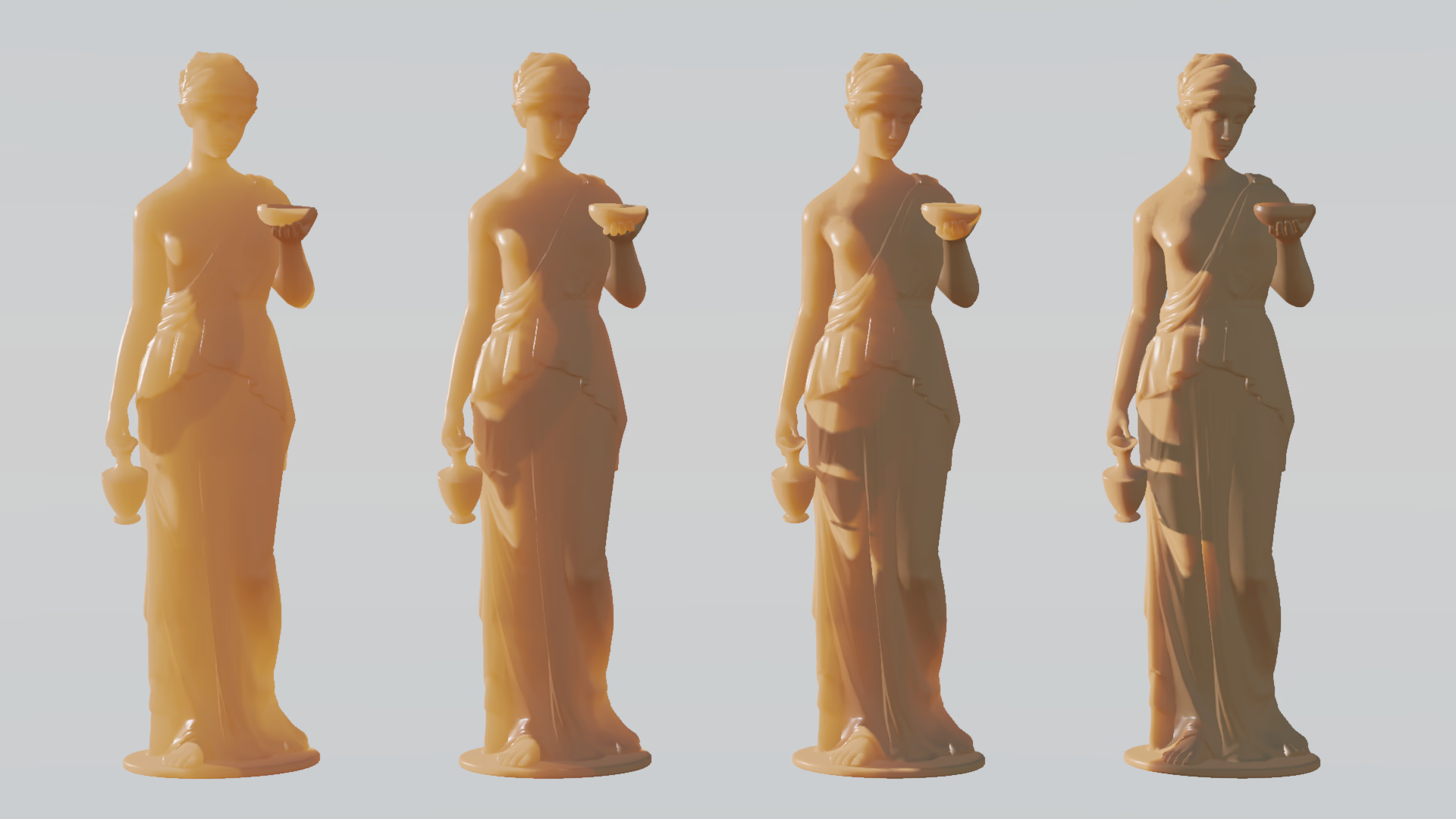
The thickness is fed into an exponential falloff. It is multiplied by a scalar and by an absorption color, which acts as a per-channel coefficient.
Because each channel decays at its own rate, thin areas stay bright while thicker areas shift toward the color that is absorbed the least.
float distanceOut = -mul(_lightViewMatrix, float4(positionWS, 1)).z; // the light looks down -z
float distanceIn = SAMPLE_TEXTURE2D(_lightDepthTexture, sampler_LinearClamp, uv).r;
float thickness = max(0, distanceOut - distanceIn);

float3 transmittance = exp(-thickness * _densityScale * _AbsorptionColor.rgb);
float3 subsurfaceColor = transmittance * mainLightColor.rgb * _subsurfaceStrength;

return bsdf + subsurfaceColor; // bsdf: the regular lit result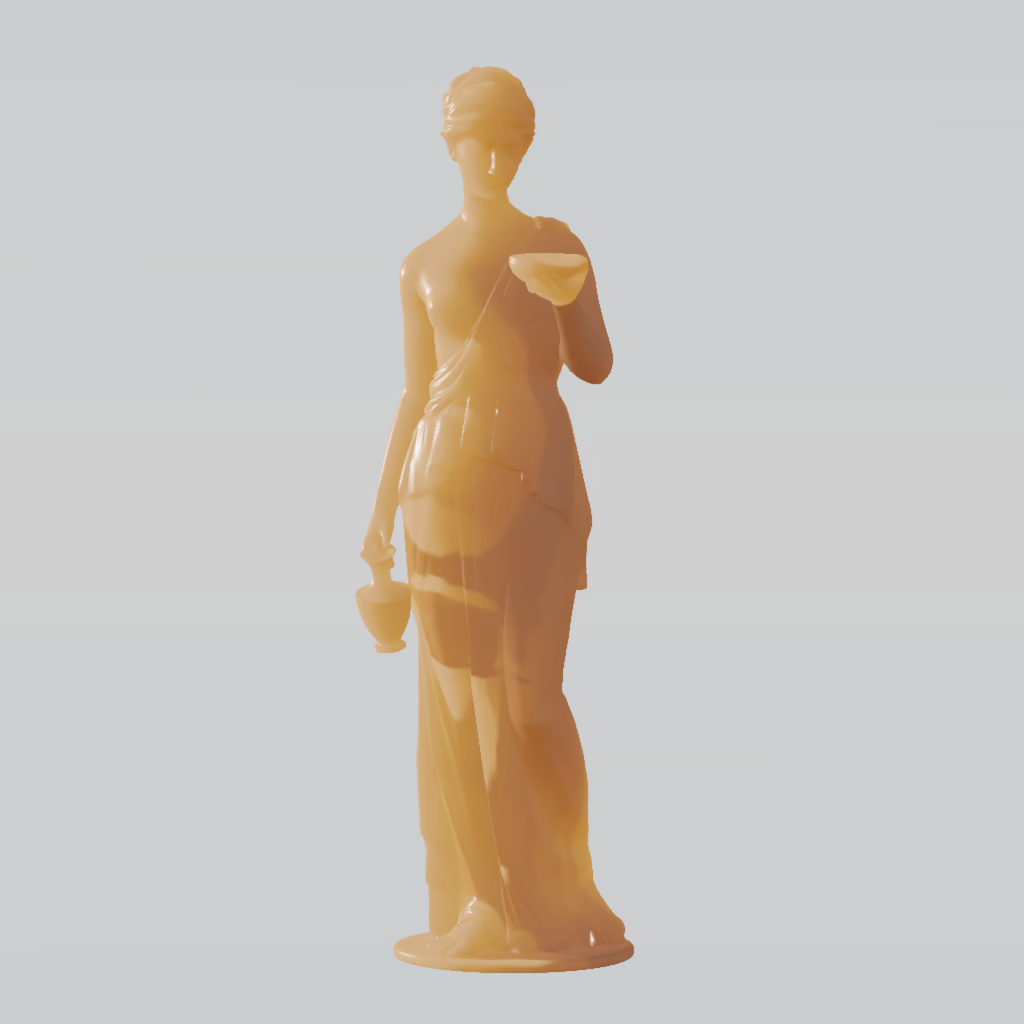
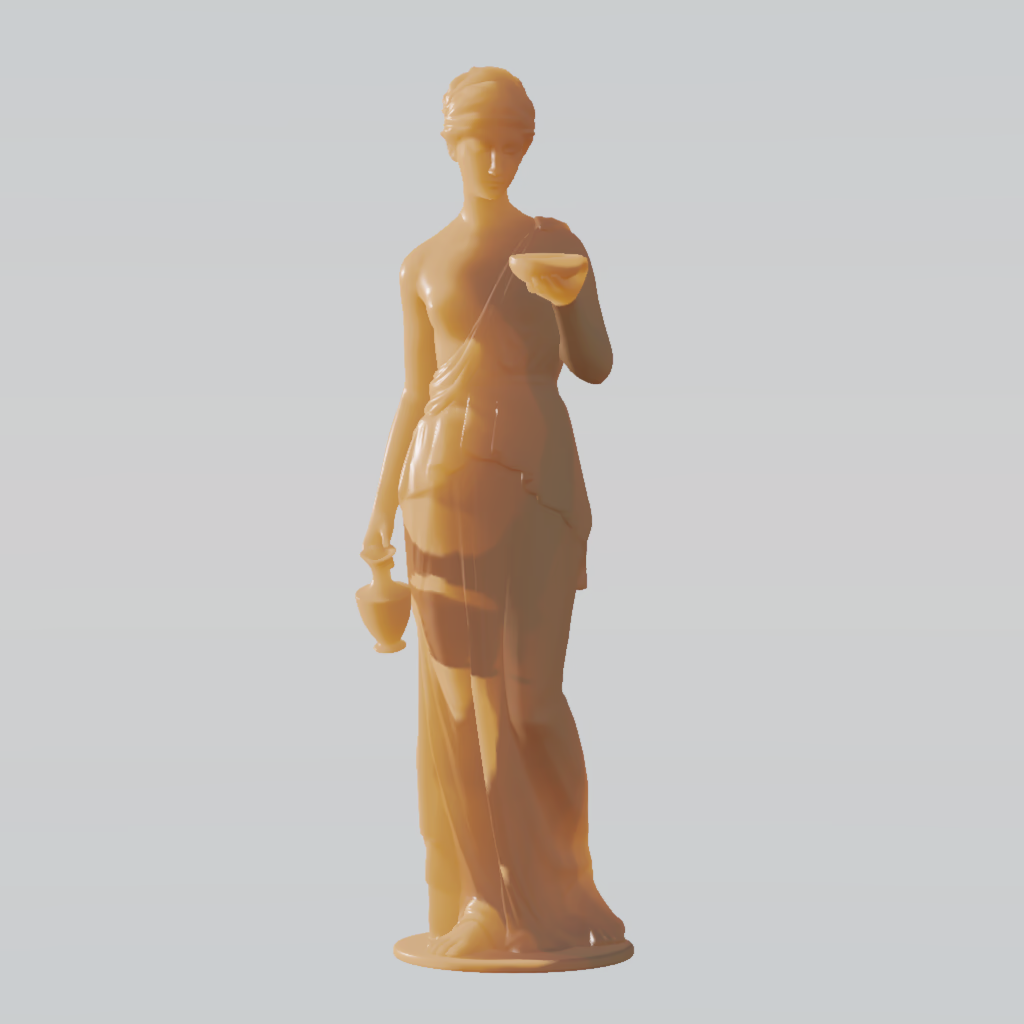
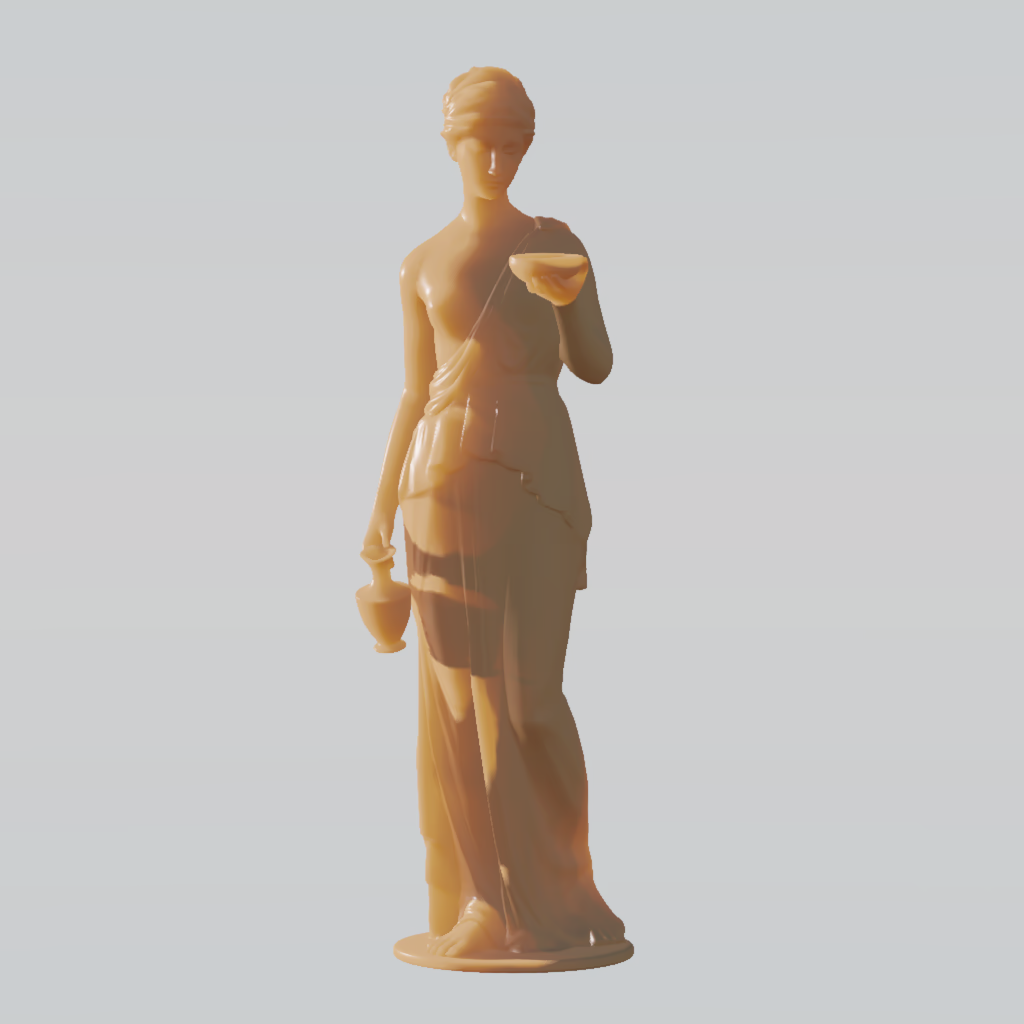
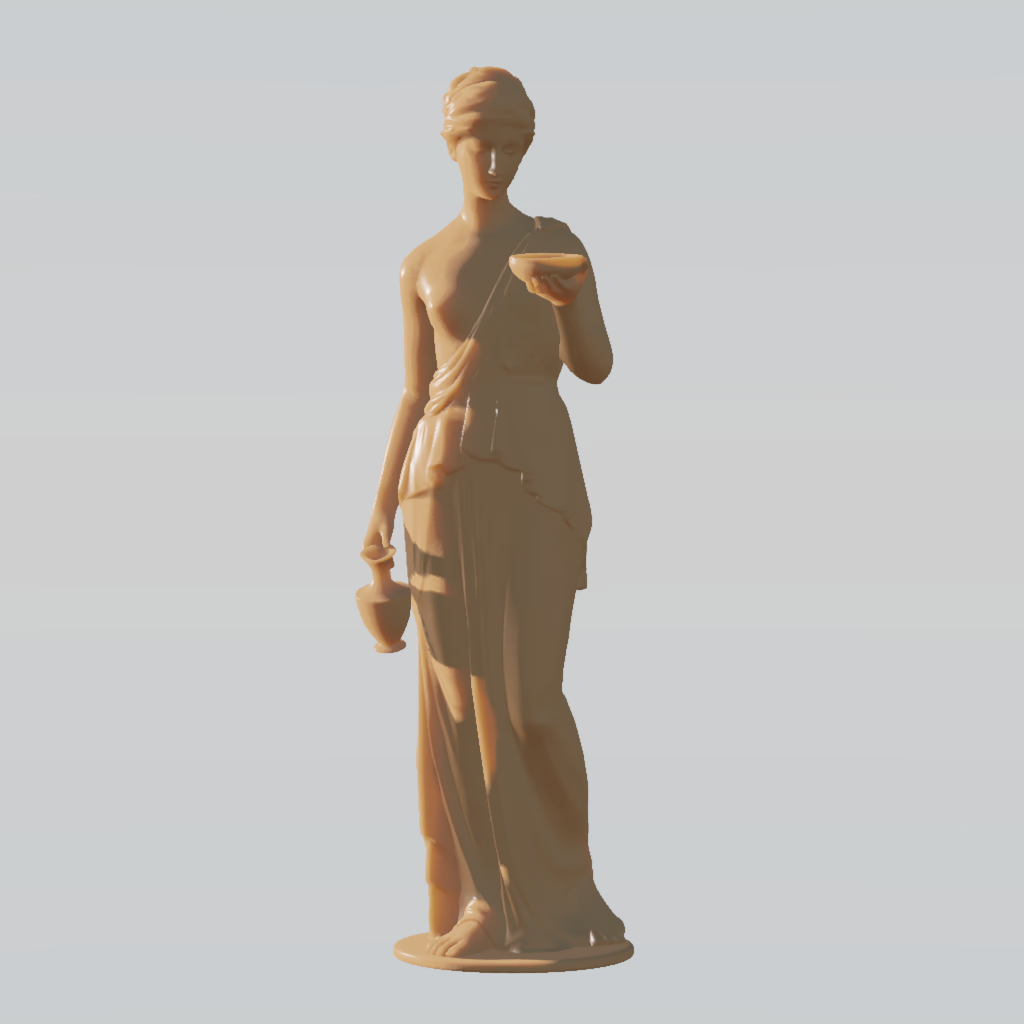
The same object with an increasing density scale (left to right: 20, 45, 70, 250). A higher scale makes the light decay faster, so thin parts keep their glow while thicker parts go dark.
Blurring the thickness#

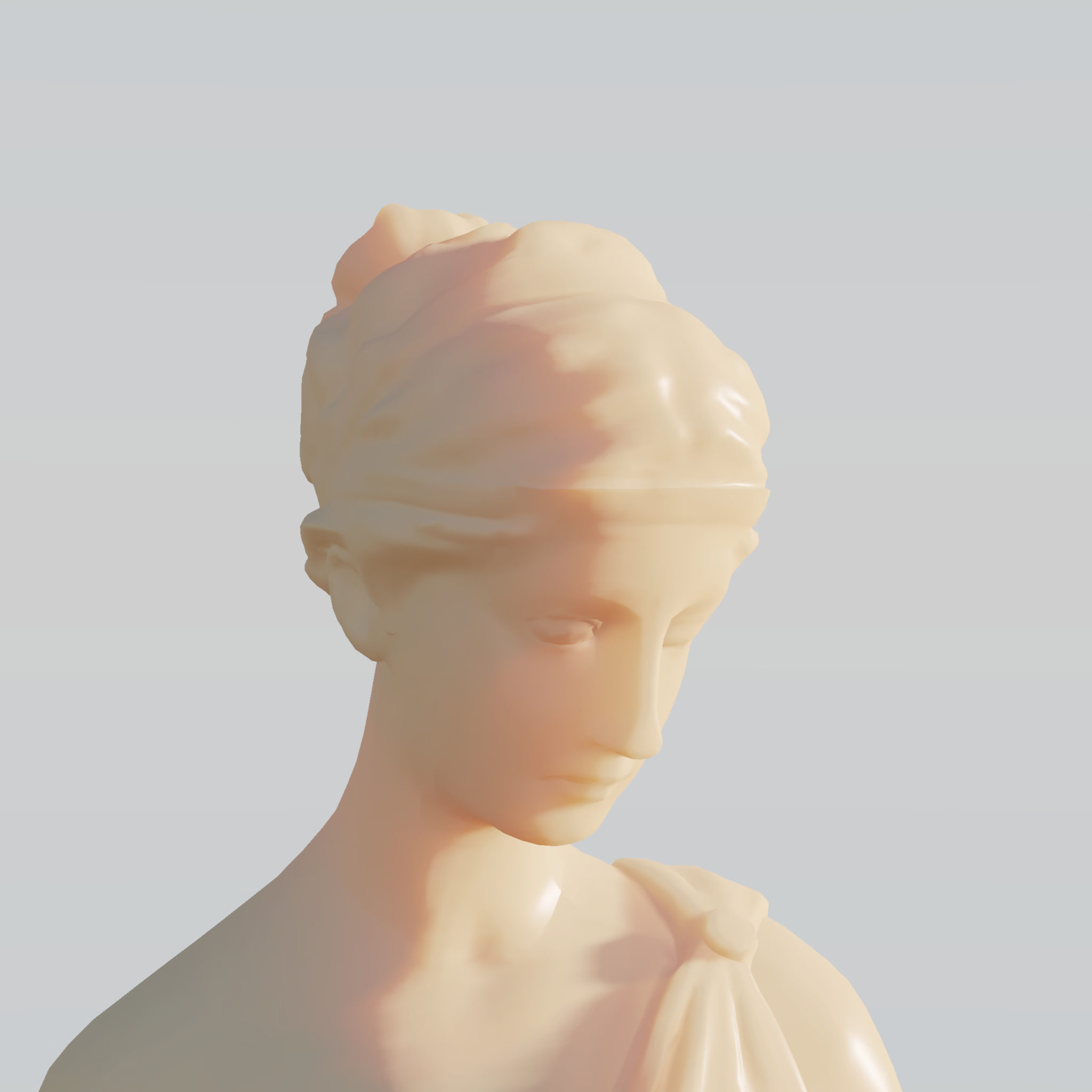
The initial effect samples the light’s distance texture with a linear clamp sampler.
Near silhouettes this blends the object’s depth with the background and causes sampling artifacts.
To fix this I used PCF (percentage-closer filtering) with a kernel that scales with the initial thickness.
The sample pattern is rotated per pixel using interleaved gradient noise, and TAA averages the noise over several frames, which gives a smooth result.
Conclusion#
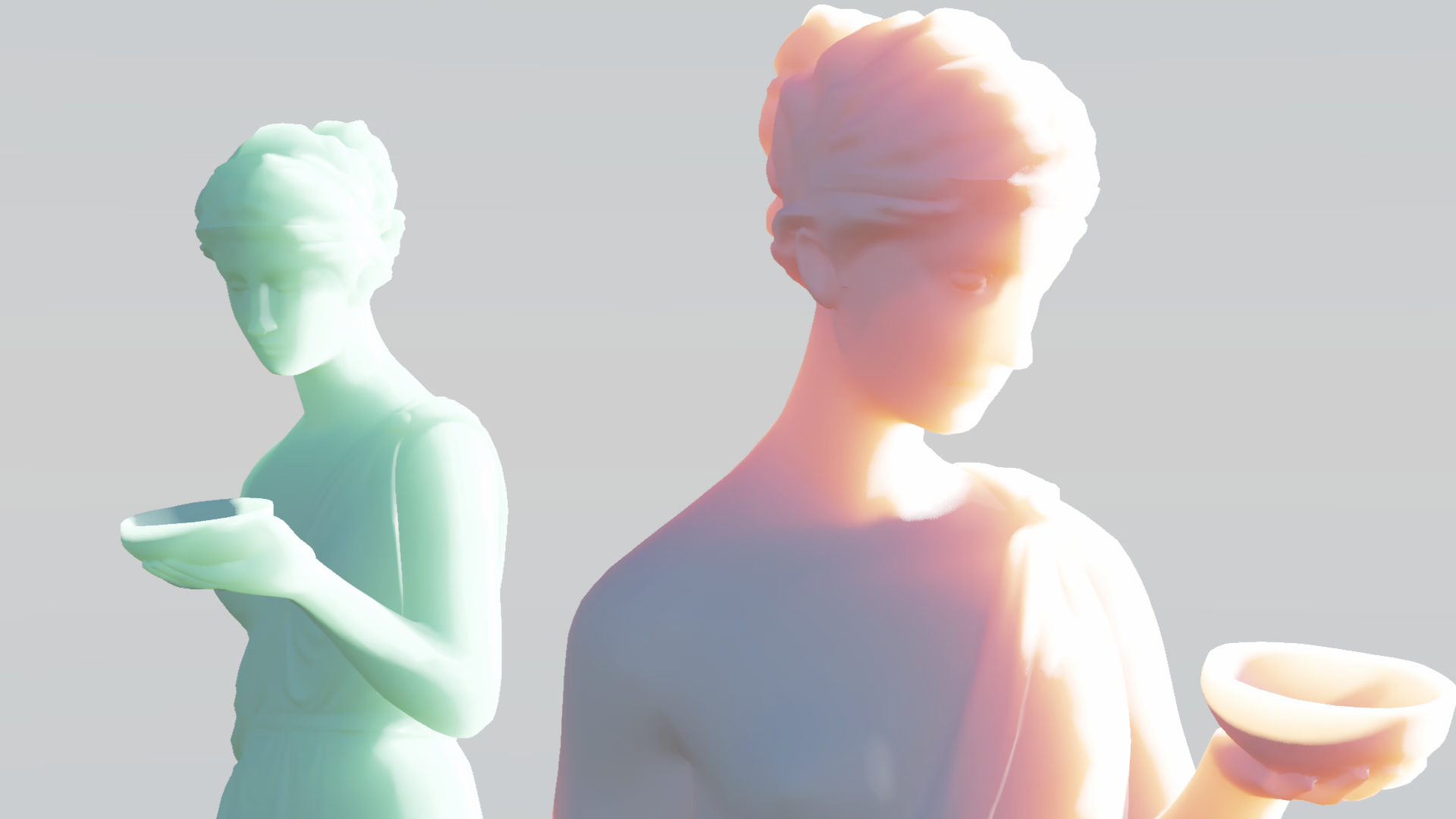
This technique results in a convincing effect at a low cost. Its main limitation is that the thickness is calculated along the light direction, so concave shapes give wrong results.
References#
GPU Gems - Chapter 16.3 Simulating Absorption Using Depth Maps
Interleaved Gradient Noise: A Different Kind of Low Discrepancy Sequence